Skip to content
Krea 2 logoKrea 2

Tool · Product & brand visuals

Build a studio-grade Krea 2 product shot prompt in seconds

Use this Krea 2 product shot prompt generator to describe the item once, then pick a material, surface, light, mood, and camera. The builder assembles a structured prompt you can copy anywhere — or open in the generator with the crop and speed already set.

  • 50 free credits on signup
  • No card required
  • Edit anything in Krea 2 before rendering

Start with a preset

Start with a preset

Product brief

1 / 3

Product

Set and styling5 Control groups

Material

Material

Surface

Surface

Lighting

Lighting

Mood

Mood

Camera

Camera
Output1:1 · Medium

Aspect ratio

Aspect ratio

Rendering speed

Rendering speed

Prompt ready

1:1 · Medium

How the Krea 2 prompt builder works

Three steps from a blank field to a finished, art-directed image.

  1. Describe the subject

    Type one specific subject with a telling detail — the color, the finish, the label. The builder handles the photography language around it.

  2. Pick a direction

    Tap through the preset chips. Each one swaps a tested prompt fragment, so the wording stays coherent while the look changes.

  3. Generate and refine

    Copy the prompt or open it in the Krea 2 generator with the crop and speed prefilled. Re-roll with one change at a time until it clicks.

Image prompt templates to start from

Copy one as-is, or send it to the Krea 2 generator and swap the subject for your own.

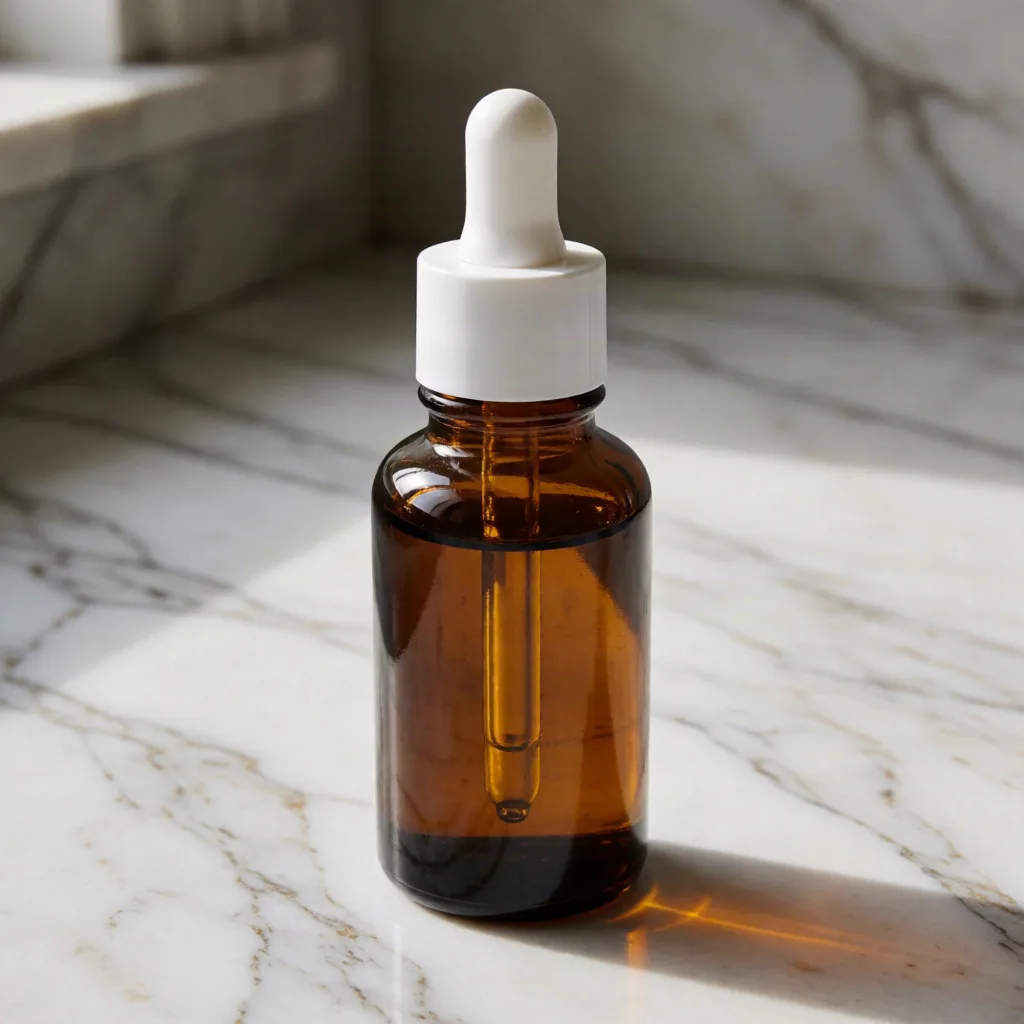
Unbranded amber serum dropper bottle on veined marble, generated with Krea 2 Medium
1:1Medium

Amber glass serum bottle

Product shot: An amber glass serum bottle with a white pipette cap. Material: glossy glass with crisp reflections and refractions. Surface: a veined marble countertop. Lighting: soft directional window light. Art direction: minimal and clean. Camera: a 45-degree hero angle with shallow depth of field. High detail, photorealistic, editorial commercial photography.
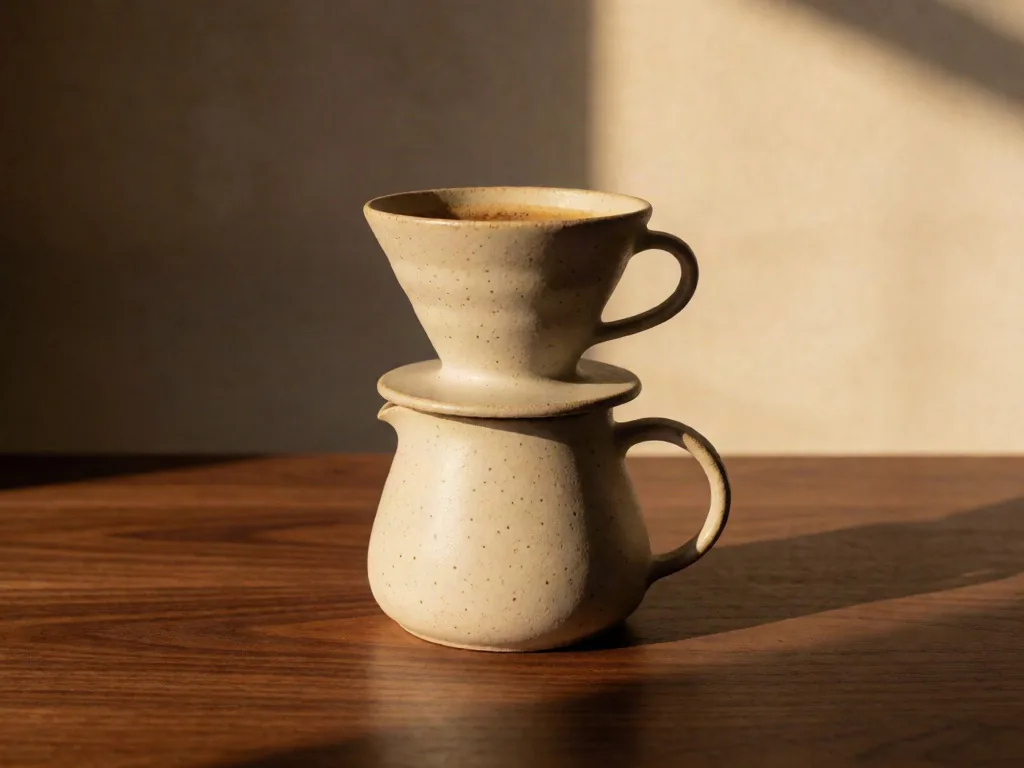
Hand-thrown ceramic pour-over coffee set in golden light, generated with Krea 2 Medium
4:3Medium

Hand-thrown pour-over set

Product shot: A hand-thrown pour-over coffee set in speckled clay. Material: matte ceramic with a soft eggshell finish. Surface: a warm walnut wood tabletop. Lighting: warm golden-hour light raking across the scene. Art direction: warm and organic. Camera: an eye-level straight-on composition. High detail, photorealistic, editorial commercial photography.
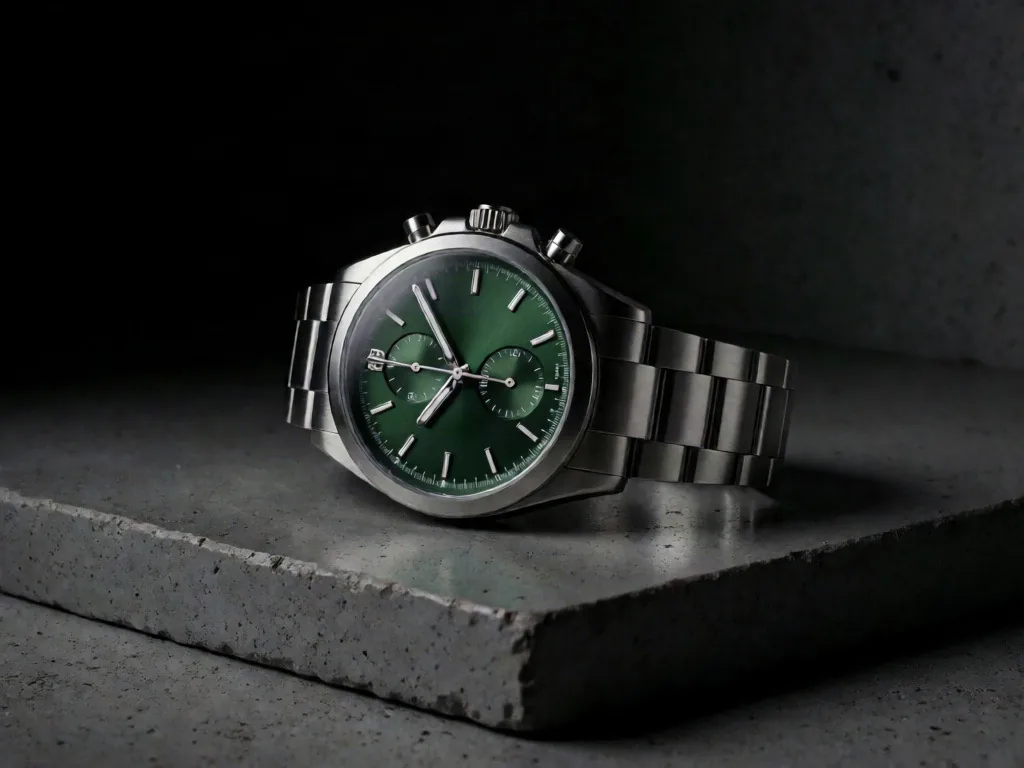
Unbranded steel chronograph with a blank green dial, generated with Krea 2 Medium
4:3Medium

Steel chronograph watch

Product shot: A brushed steel chronograph watch with a deep green dial. Material: brushed metal with fine directional highlights. Surface: a polished concrete slab. Lighting: dramatic low-key lighting with deep shadows. Art direction: premium editorial. Camera: a macro close-up of the key detail. High detail, photorealistic, editorial commercial photography.

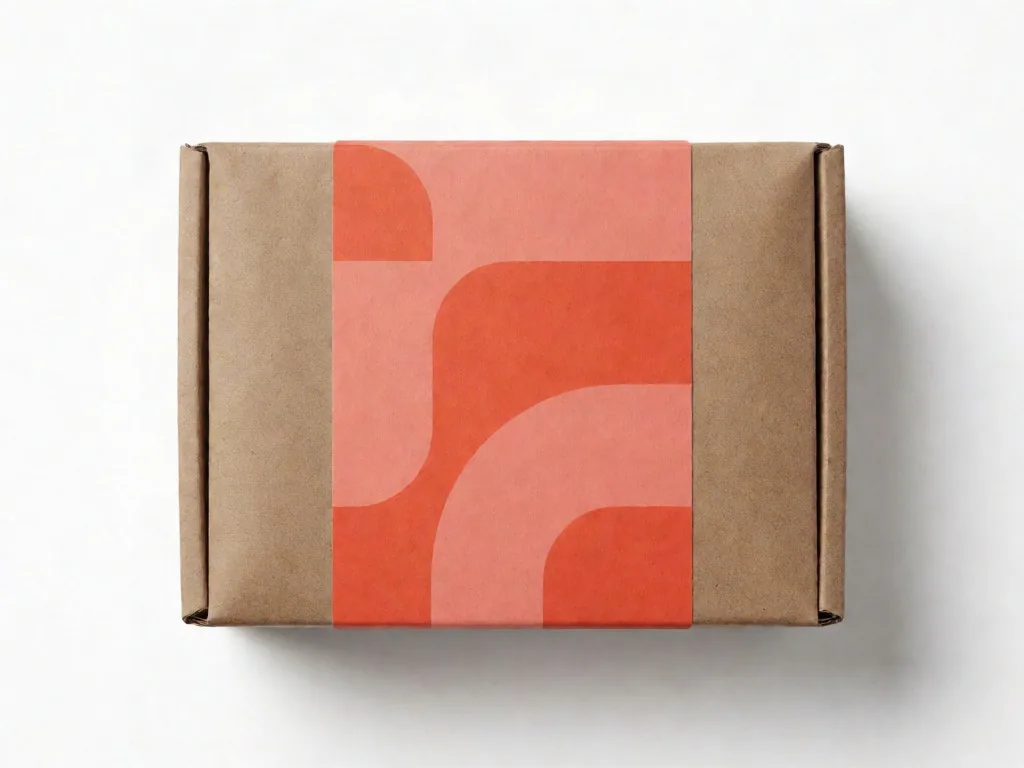
Unbranded kraft coffee box with a coral geometric label, generated with Krea 2 Medium
4:3Medium

Kraft-boxed espresso beans

Product shot: A kraft box of single-origin espresso beans with a coral label. Material: uncoated paper and kraft cardboard textures. Surface: a white seamless studio sweep. Lighting: clean studio softbox lighting. Art direction: bold and saturated. Camera: top-down flat-lay framing. High detail, photorealistic, editorial commercial photography.

Art direction and prompt decisions for product shots

A useful product photography prompt separates the item from the art direction around it. The Krea 2 product shot prompt generator lets you define materials, staging, lighting, and framing as individual decisions, so you can compare visual directions before refining typography, logos, regulatory copy, and other brand-critical details in post-production.

01

Packaging silhouette and form

Describe the overall form first: a cylindrical dropper bottle, wide apothecary jar, slim folding carton, or stand-up pouch. Focus on silhouette, cap shape, and one distinguishing feature before label copy. When branded typography, regulatory text, or exact packaging dimensions matter, verify them separately or composite approved artwork in a production design tool.

02

Material response and texture

Name how the material responds to light, not only its color. Frosted glass should diffuse highlights; brushed aluminum needs directional grain; uncoated cardboard benefits from visible fibers and soft edges. Fine textures can vary between generations, so treat the result as a finish-direction reference rather than proof of a manufactured substrate.

03

Surface and background context

Choose a surface that supports the product story without competing for attention. Honed stone and polished concrete feel precise and premium; linen and raw wood read warmer and more handmade. Keep props restrained, describe a clear ground plane, and leave the hero item enough contrast to remain readable at marketplace-thumbnail size.

04

Studio light and reflections

Define a specific lighting relationship: a large diffused softbox for gradual highlights, a narrow rim light for separation, or low-key overhead light for a darker campaign. Curved glass and metal can produce inconsistent synthetic reflections, so inspect edges, cap transitions, and mirrored details before treating a generated frame as finished creative.

05

Camera angle, lens, and crop

Use lens and camera language to guide perspective rather than promise exact optics. An eye-level 85mm product view suggests compression and clean verticals; a top-down frame supports flat lays; a macro crop emphasizes finish and detail. Ask for generous negative space because generated margins are not mathematically exact and may need downstream cropping.

06

Brand guardrails across a set

For a product family, repeat the same palette, color temperature, surface, shadow softness, and depth-of-field language while changing only the item description. These guardrails make large stylistic jumps less likely, but they cannot force identical product geometry from every angle. Review each result for continuity before assembling a campaign set.

Practical product-shot workflows

Structured prompts are most useful early, when the team is comparing staging, finish, and campaign directions. They do not replace CAD, approved packshots, final photography, or retouching. Use them to make visual choices concrete, document what changed, and decide which direction deserves a production-ready asset.

E-commerce catalog concepts

Lock the backdrop, camera elevation, crop, and lighting, then change only the product description to explore a consistent catalog grid. This helps preview how several SKUs might sit together on an ecommerce page. For live marketplace listings, verify proportions, readable packaging details, and product accuracy or composite an approved packshot when required.

Marketing campaign directions

Turn a neutral packshot into campaign concepts by changing the environment, prop styling, palette, and accent light. Compare marble counters, abstract podiums, bathroom shelves, or outdoor morning light without rewriting the whole prompt. Final promotional creative may still need verified product artwork and vector logos composited over the selected background direction.

Packaging and finish exploration

Use the same container description to compare color, material, and finish ideas such as frosted glass, amber tints, satin labels, or foil accents. These images can make an internal review more concrete before prototypes arrive. They are not structural dielines, color proofs, or reliable sources of precise typography and regulatory information.

Seasonal visual refreshes

Keep the product and camera fixed while changing seasonal color temperature, supporting surfaces, and restrained props. Test autumnal sidelight, cool winter reflections, or brighter summer highlights as separate directions. When a concept is approved, rebuild the banner with verified brand assets so seasonal atmosphere changes without compromising packaging accuracy.

Client review and sign-off

Present iterations in controlled pairs: one camera-angle change, one lighting change, or one surface change at a time. This makes creative tradeoffs easier to discuss and records why a direction was selected. Label generated frames as visual-direction drafts so clients understand what will still be photographed, retouched, composited, or rebuilt.

Prompt tips for sharper images

Small wording changes move the Krea 2 result more than re-rolling ever will.

  • Name one specific item with a telling detail — "an amber glass serum bottle with a white pipette cap" beats "a skincare product".
  • Match material to light in Krea 2: glass and brushed metal reward directional light, while fabric and paper stay readable under a soft softbox.
  • Change one variable per re-roll — keep the subject and surface fixed and swap only the lighting, so you can compare Krea 2 outputs honestly.
  • Pick the crop for the destination before you render: 1:1 for marketplace tiles, 4:3 for web banners, 9:16 for stories.
  • Shooting a whole collection? Reuse the same material, surface, and lighting picks and change only the item description, so every image in the set matches.

Product shot prompt generator FAQ

What does this prompt builder do?

It assembles a structured product shot prompt from your picks — the item you describe plus material, surface, lighting, mood, and camera — and hands it to the Krea 2 generator with the crop and speed prefilled. You can still edit every word before rendering.

Is the prompt builder free to use?

Yes. The builder is free, and the Krea 2 AI image generator gives you 50 free credits on signup — no card required. Each image shows its credit cost before you generate.

Can I use the generated images commercially?

Commercial use depends on your plan and our terms. Review the pricing and terms pages before publishing Krea 2 images in client work, packaging, or ads.

Which items render best in Krea 2?

Rigid, well-defined objects — bottles, boxes, devices, tableware — render most consistently. Name the finish and one distinguishing detail, then let the material and lighting picks carry the styling.

Turn the prompt into a finished image

Open the Krea 2 generator and render your first image in seconds. 50 free credits on signup, no card required.