Skip to content

Krea image editor · Krea 3

Krea 3 Image Editor Online: Change One Part, Keep the Rest

Krea 3 is the image editing model Krea released on October 15, 2026. Use Krea 3 online here: upload a photo, add up to four reference images, and write a short prompt. The Krea 3 image editor changes the part you name and keeps the product, face, lettering, and layout you did not mention.

01 · Image to edit

Text-to-image mode

Optional. Leave it empty and Krea 3 creates an image from the prompt alone.

Drop JPG, PNG, or WebP files here (10MB each). The first image is <image-1>.

02 · Write your Krea 3 prompt

03 · Crop & resolution

Resolution
10 credits

Selected files stay in your browser until you start a generation.

Real Krea 3 edit1K
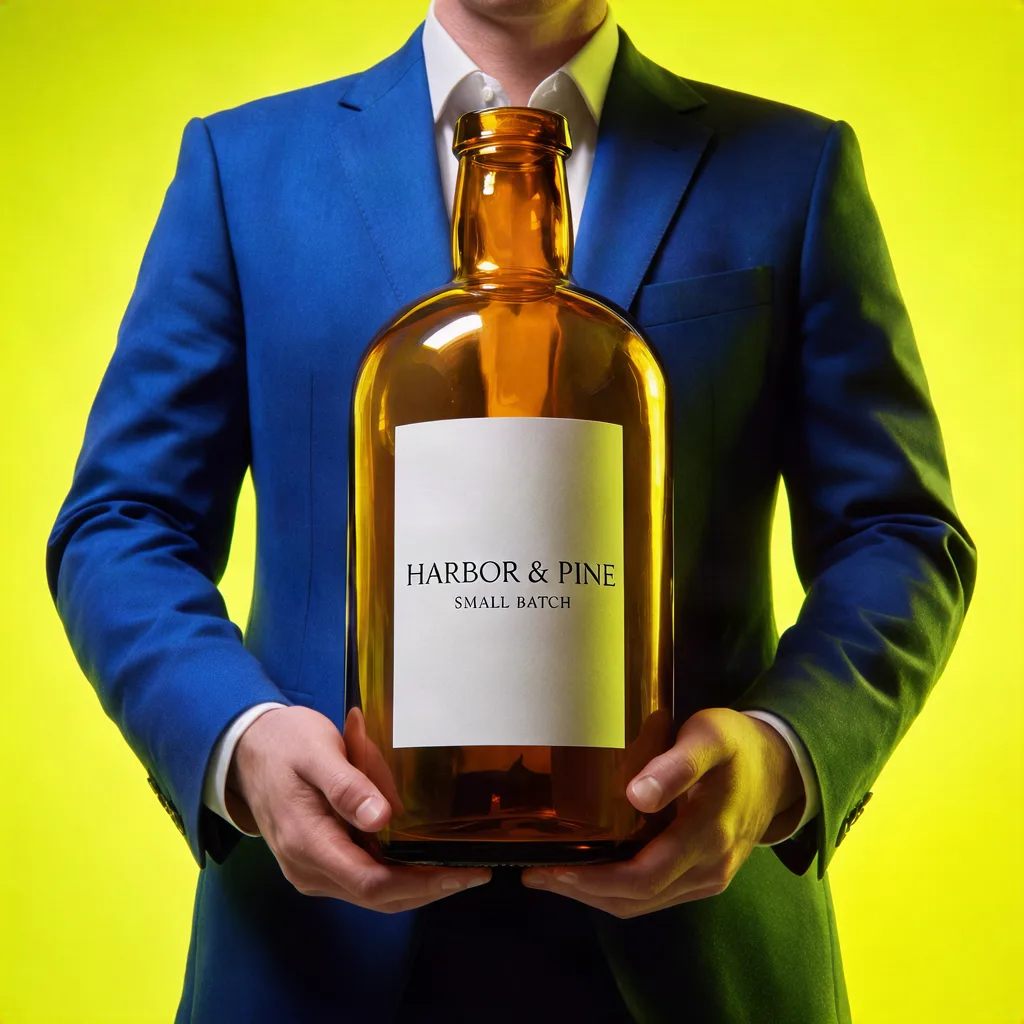
Product photo with an unreadable bottle label
Source
Krea 3 edit replacing unreadable label text with a clean product label
Result

Fix product label text

Unreadable AI lettering became a clean two-line label. The bottle, hands, suit, and backdrop were left alone.

View the exact prompt

Edit <image-1>: replace only the text on the white bottle label with two clean lines of serif type reading "HARBOR & PINE" and, smaller below it, "SMALL BATCH". Keep the amber bottle, the hands, the blue suit, the yellow background, and the lighting exactly as they are.

  • 10 free credits on sign-up
  • Up to 5 reference images
  • Edits from 20 credits

What is Krea 3? The Krea 3 image editor explained

Krea describes Krea 3 as an editor rather than a from-scratch generator: you give it an image, say what should change, and it keeps the rest. These are the facts worth knowing before your first Krea 3 edit.

Developer
Krea (krea.ai)
Released
October 15, 2026
Built for
Editing existing images while keeping products, characters, and text intact
Reference images here
Up to 5 per edit, named <image-1>, <image-2>… in the prompt
Output here
1K or 2K text-to-image; edits at 1K; seven aspect ratios
How this site runs it
Standard Krea 3 through the WaveSpeed API, with credits from your Krea 2 account

Release date and positioning come from Krea’s announcement. Every example and timing on this page comes from our own runs.

Krea 3 edit examples: real before-and-after results

Every pair is a first-party Krea 3 edit made on this site; most finished in 20–30 seconds. Open a card to read the exact prompt, or load the same images and prompt into the editor.

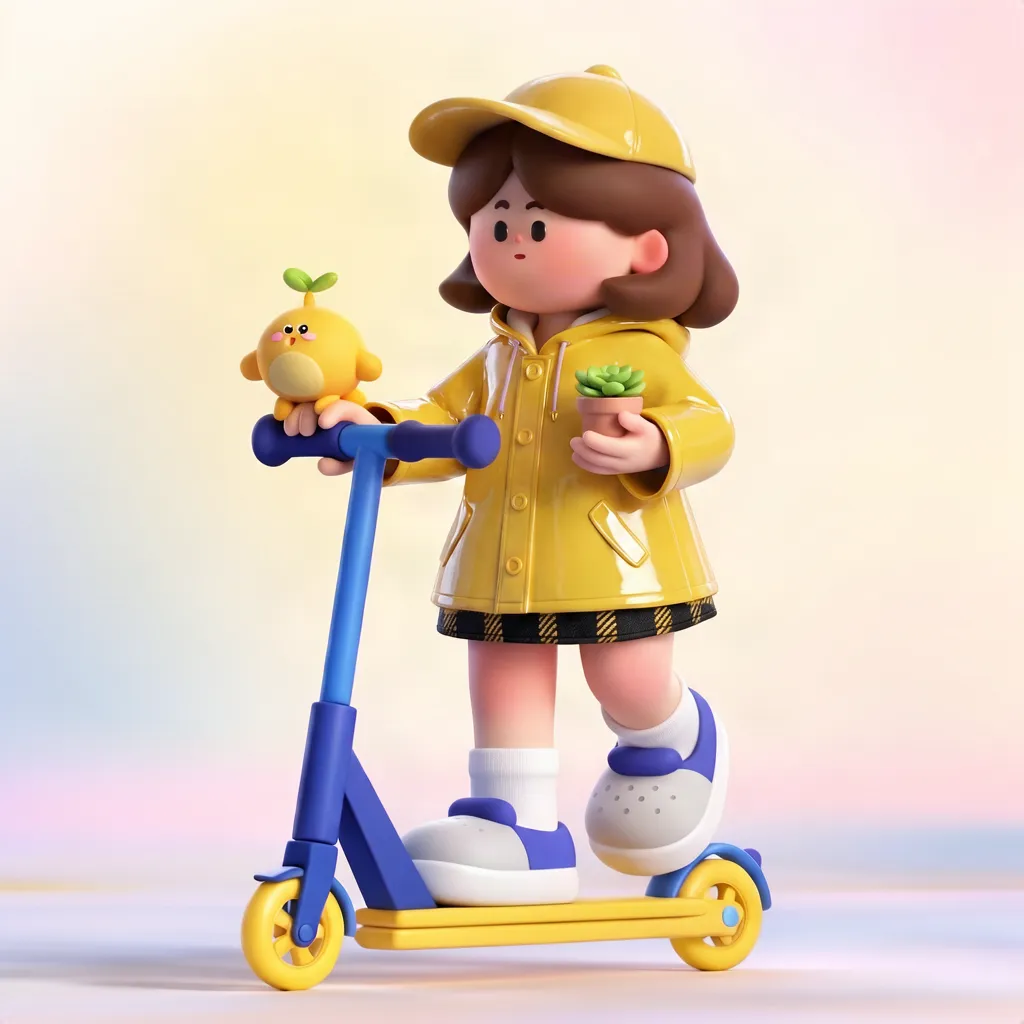
3D toy character riding a kick scooter
<image-1>
Medieval tavern interior with a wooden table
<image-2>
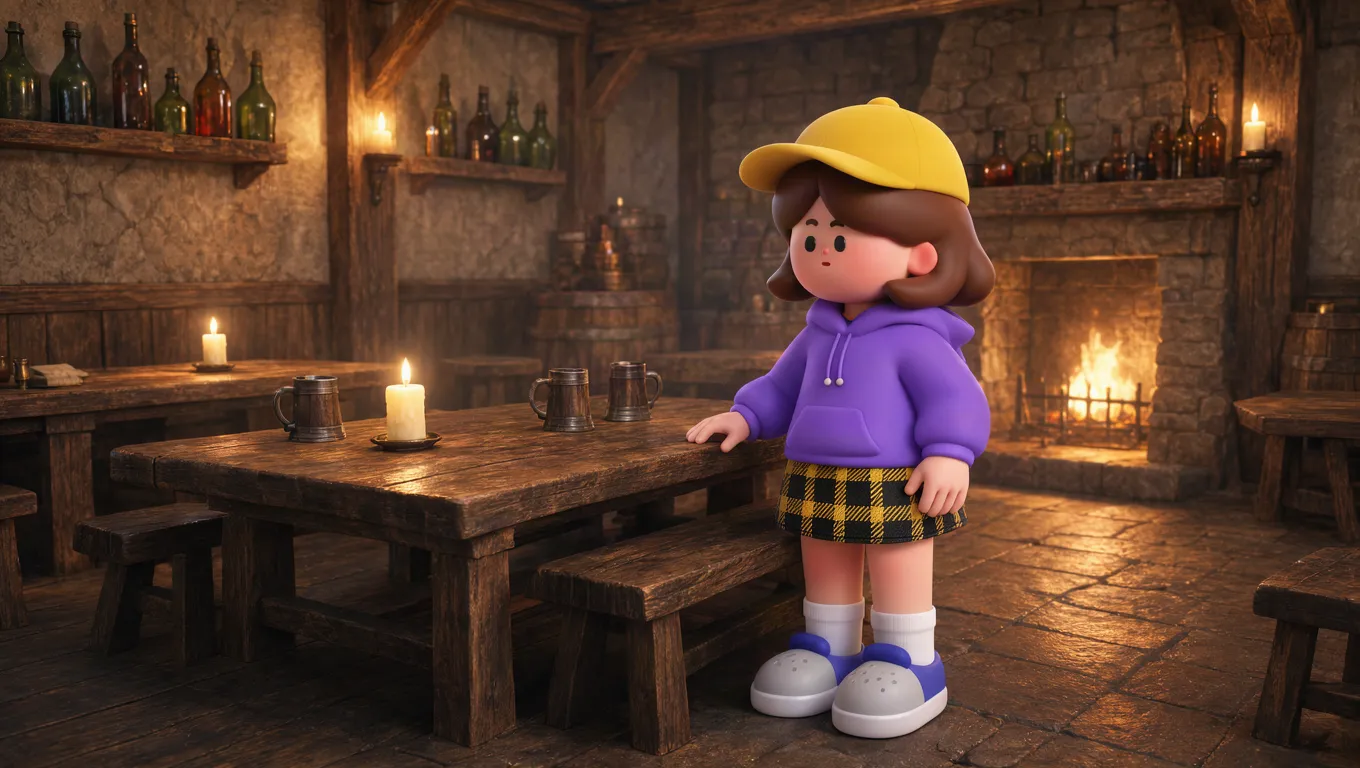
Krea 3 multi-reference edit placing a 3D character inside a tavern
Result

2 reference images

Combine two reference images

A character from <image-1> was placed inside the room from <image-2> and relit by its candles, while her outfit and proportions carried over.

View the exact prompt

Place the 3D toy character from <image-1> inside the tavern from <image-2>, standing beside the wooden table with one hand resting on it. Keep her face, brown bob, yellow cap, purple hoodie, and plaid skirt exactly as in <image-1>, and leave the scooter out. Light her with the tavern's warm candle and fireplace glow.
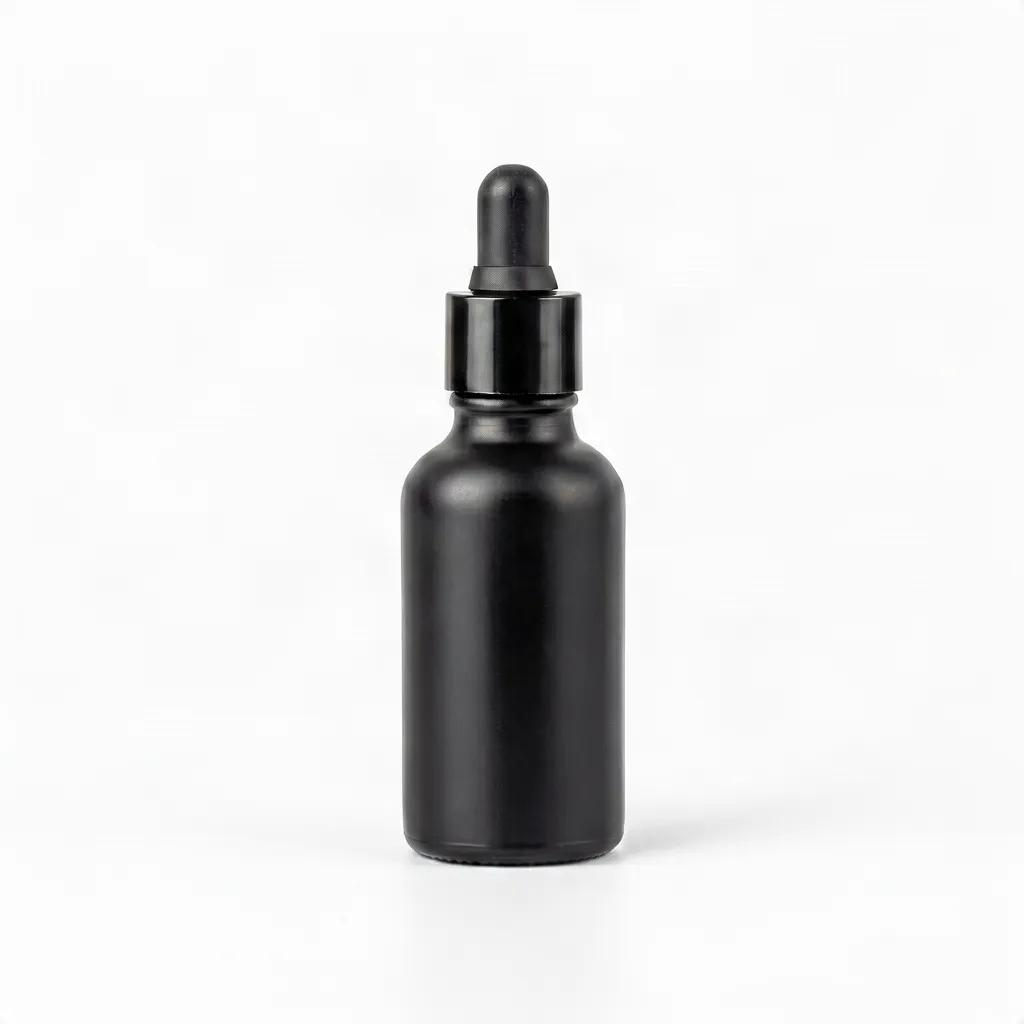
Plain product packshot on a white background
Source
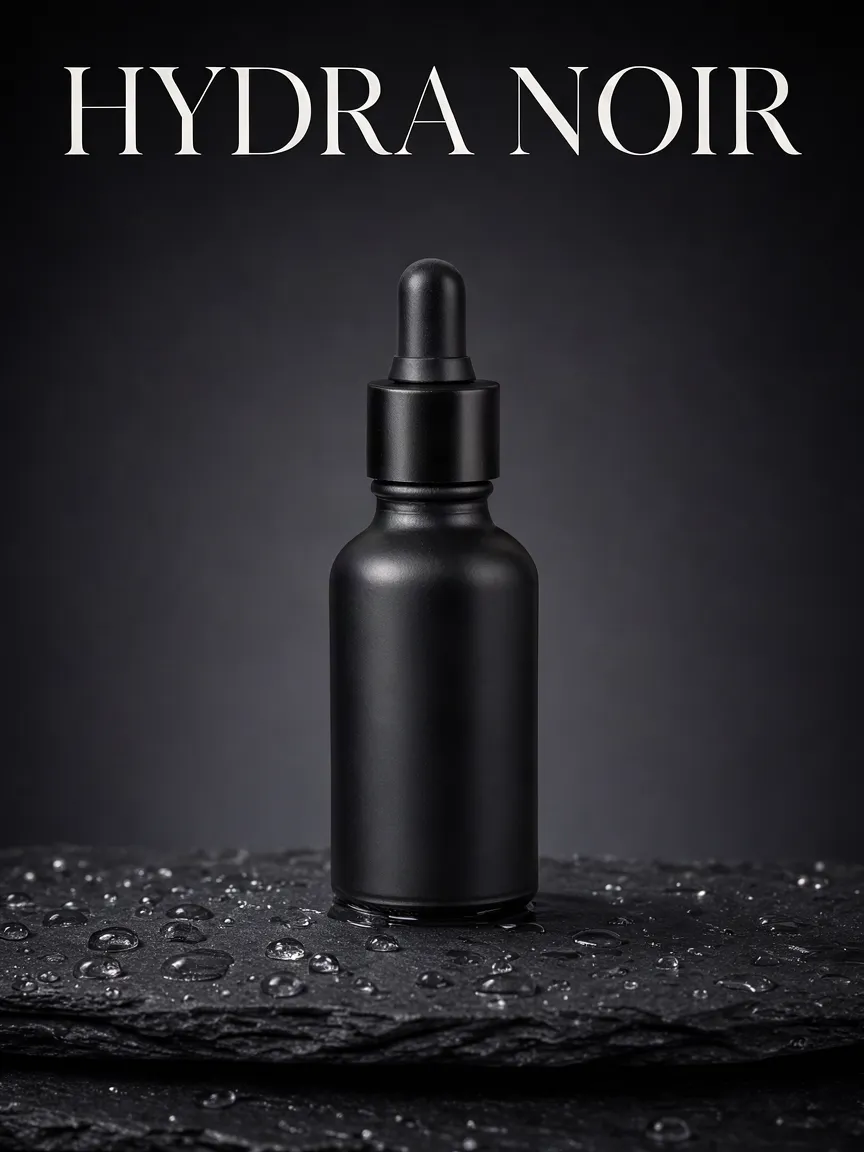
Krea 3 image editor turning a white-background packshot into an ad poster
Result

Packshot to ad poster

A plain packshot on white became a dark campaign visual with a typeset headline, and the bottle shape stayed the same.

View the exact prompt

Edit <image-1>: turn this packshot into a magazine ad. Stand the bottle on a wet dark slate block with water droplets, against a deep charcoal gradient. Add the headline "HYDRA NOIR" in white serif capitals across the top third. Keep the bottle shape, matte finish, and dropper cap unchanged.

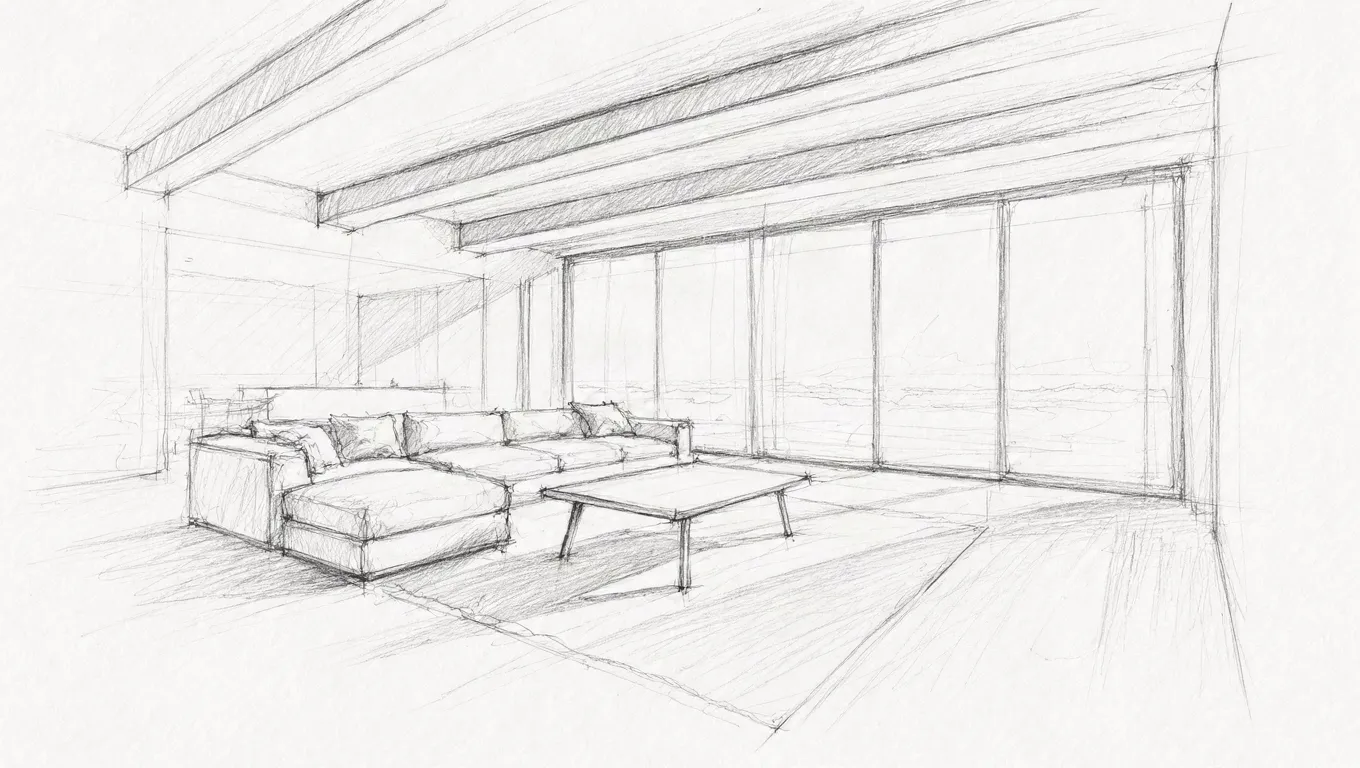
Pencil perspective sketch of a living room
Source
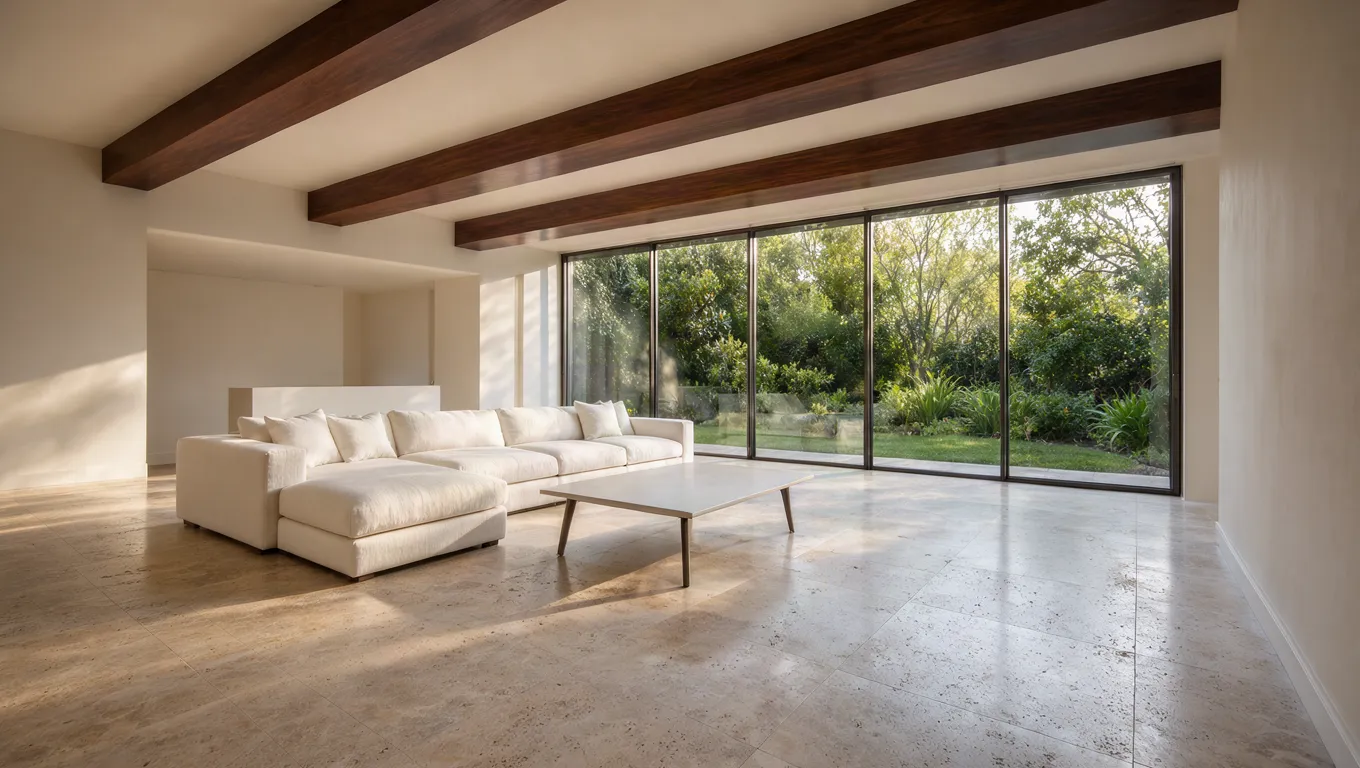
Krea 3 edit turning a pencil sketch into a photo of the same room
Result

Sketch to photo

A pencil sketch set the layout and the prompt set the materials. The room geometry and camera angle came through.

View the exact prompt

Edit <image-1>: turn this sketch into a photograph of the same living room. Keep the room geometry, window lines, sofa and table placement, and camera perspective. Use a travertine floor, walnut ceiling beams, an off-white linen sofa, a garden visible through the glass, and soft afternoon light.

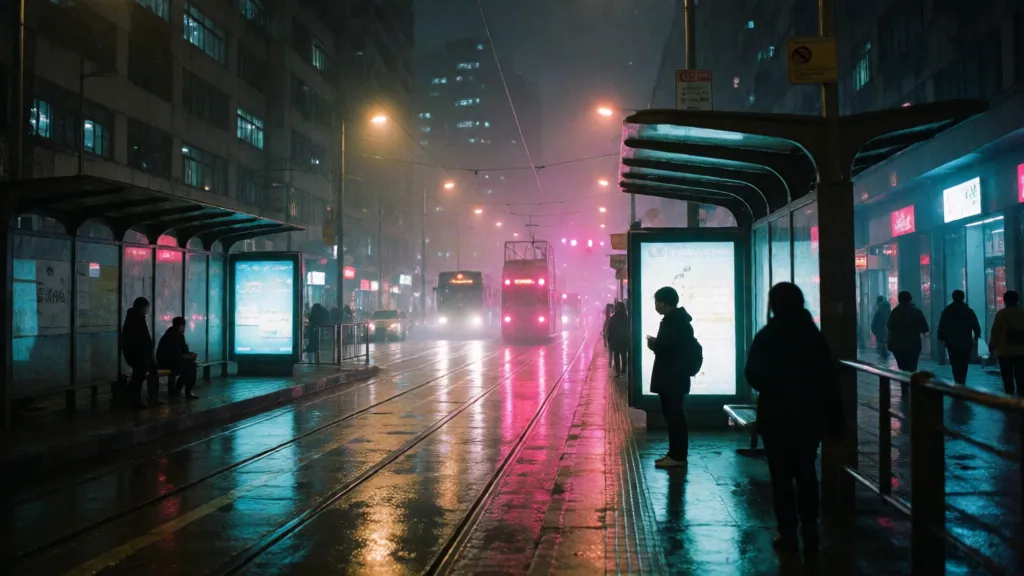
Rainy night street with a tram shelter and people
Source
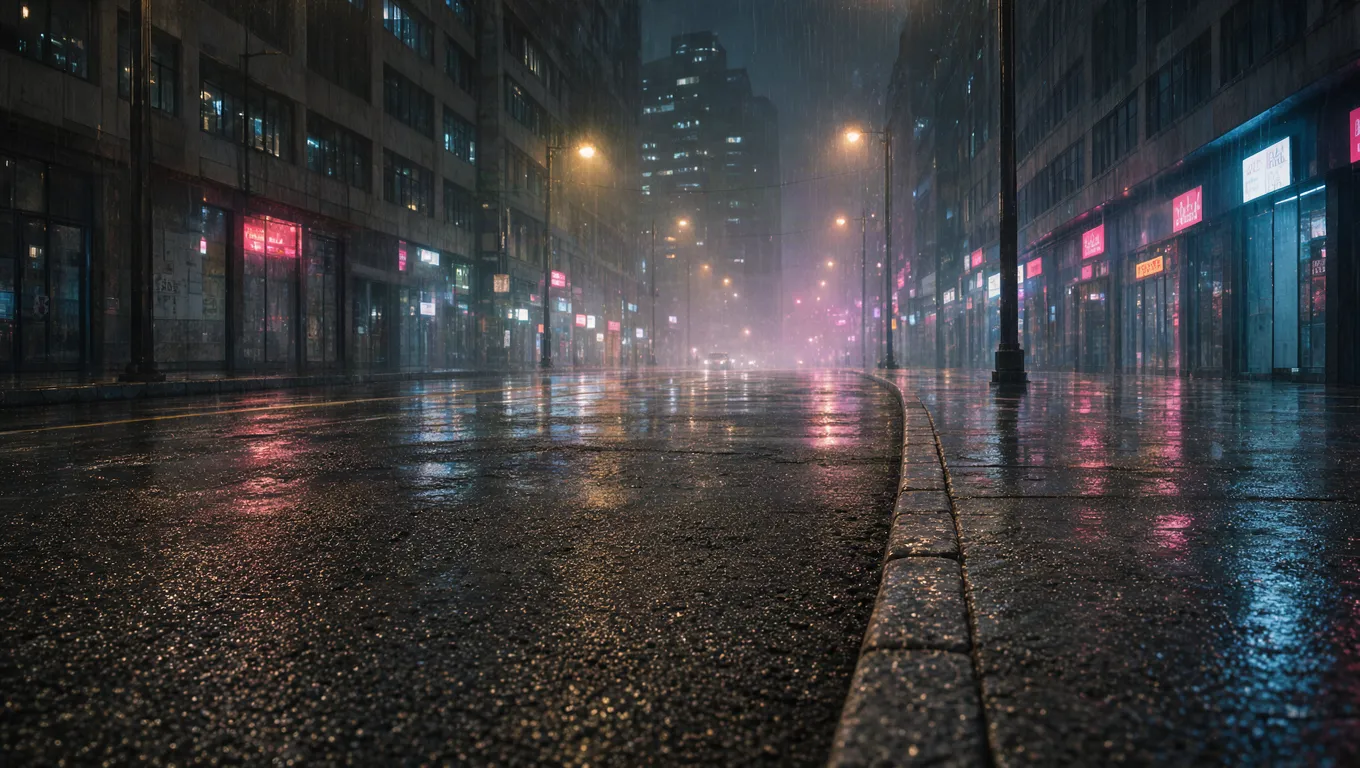
Krea 3 edit removing a shelter and people from a rainy night street
Result

Remove objects, keep the look

The shelter and people were removed and the gap filled with matching wet street, without losing the film grain or color grade.

View the exact prompt

Edit <image-1>: remove the tram shelter and all the people. Fill the space with wet asphalt and curb that reflect the neon lights. Keep the buildings, rain, reflections, color grade, and film grain unchanged.

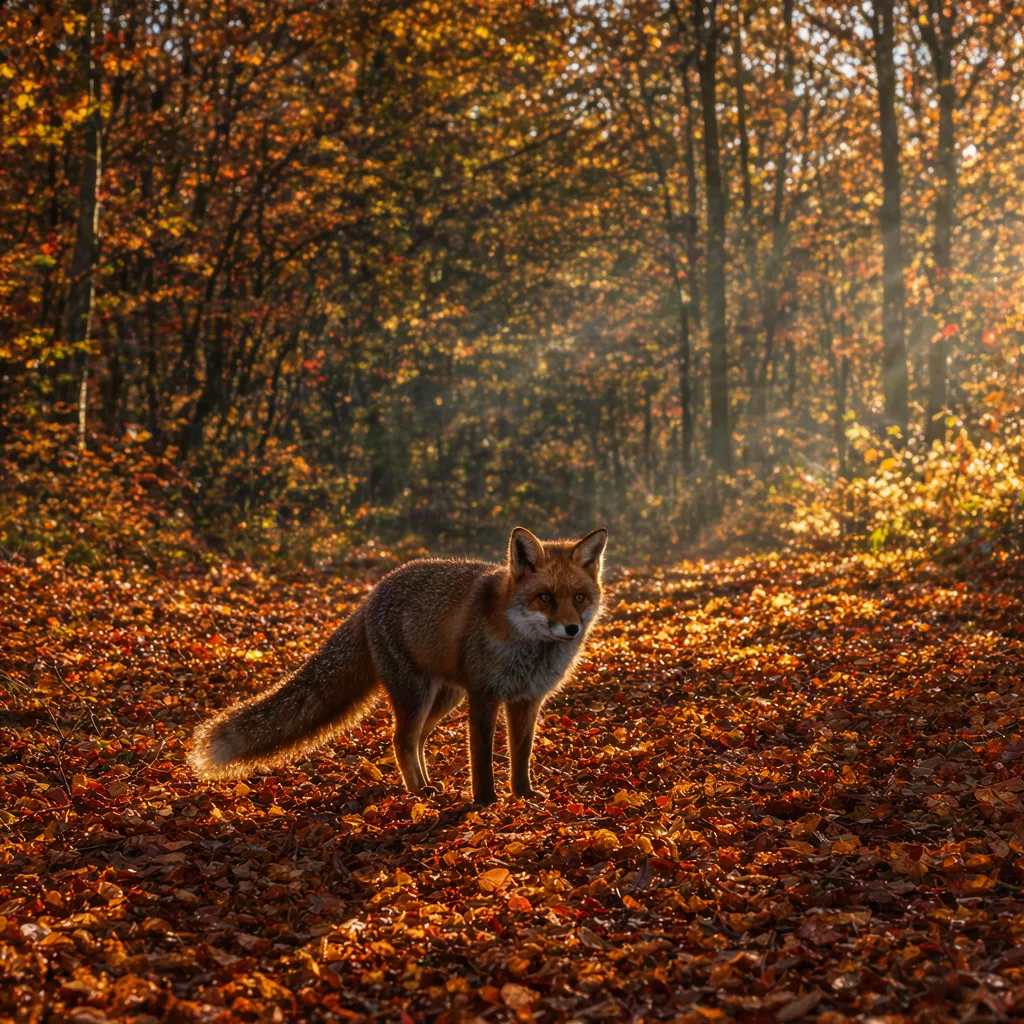
Red fox standing in snow at sunrise
Source
Krea 3 edit changing a snowy scene to autumn while keeping the fox
Result

Prompt written in Japanese

Change the season, keep the subject

Winter became autumn light while the pose and markings held. This Krea 3 prompt was written in Japanese.

View the exact prompt

<image-1> を編集:雪景色を、金色と赤茶色の落ち葉が積もった秋の森に変えてください。冷たい朝霧を、木々の間から差し込む暖かい夕方の光に変えます。キツネのポーズ、顔、目線、毛の模様はそのまま保ってください。

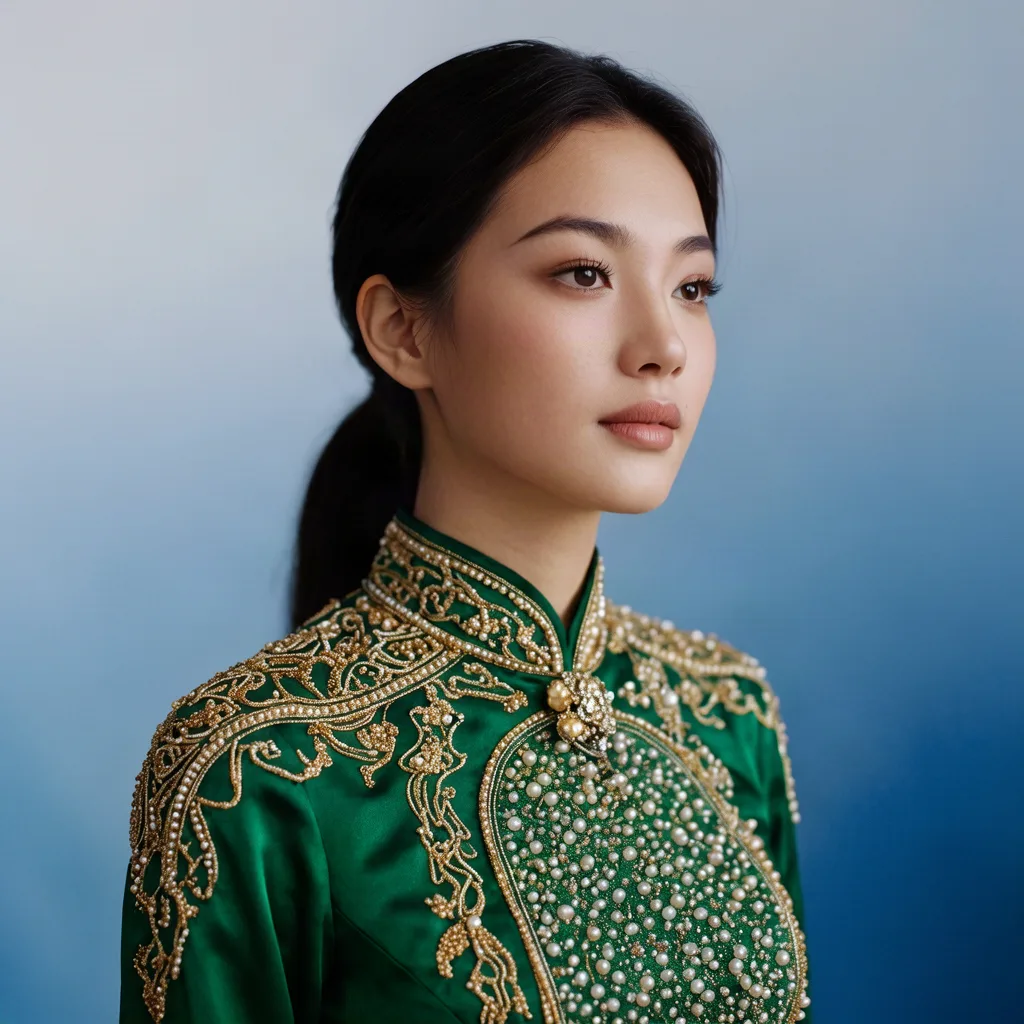
Studio portrait in a gold beaded dress
Source
Krea 3 image editor recoloring a dress while keeping the beadwork
Result

Recolor a garment, keep the detail

Only the dress color changed. Beadwork, embroidery, face, and backdrop stayed recognizably the same.

View the exact prompt

Edit <image-1>: change only the color of the dress from gold to deep emerald green silk. Keep the beadwork pattern, embroidery, collar shape, face, hair, pose, and the blue studio background unchanged.

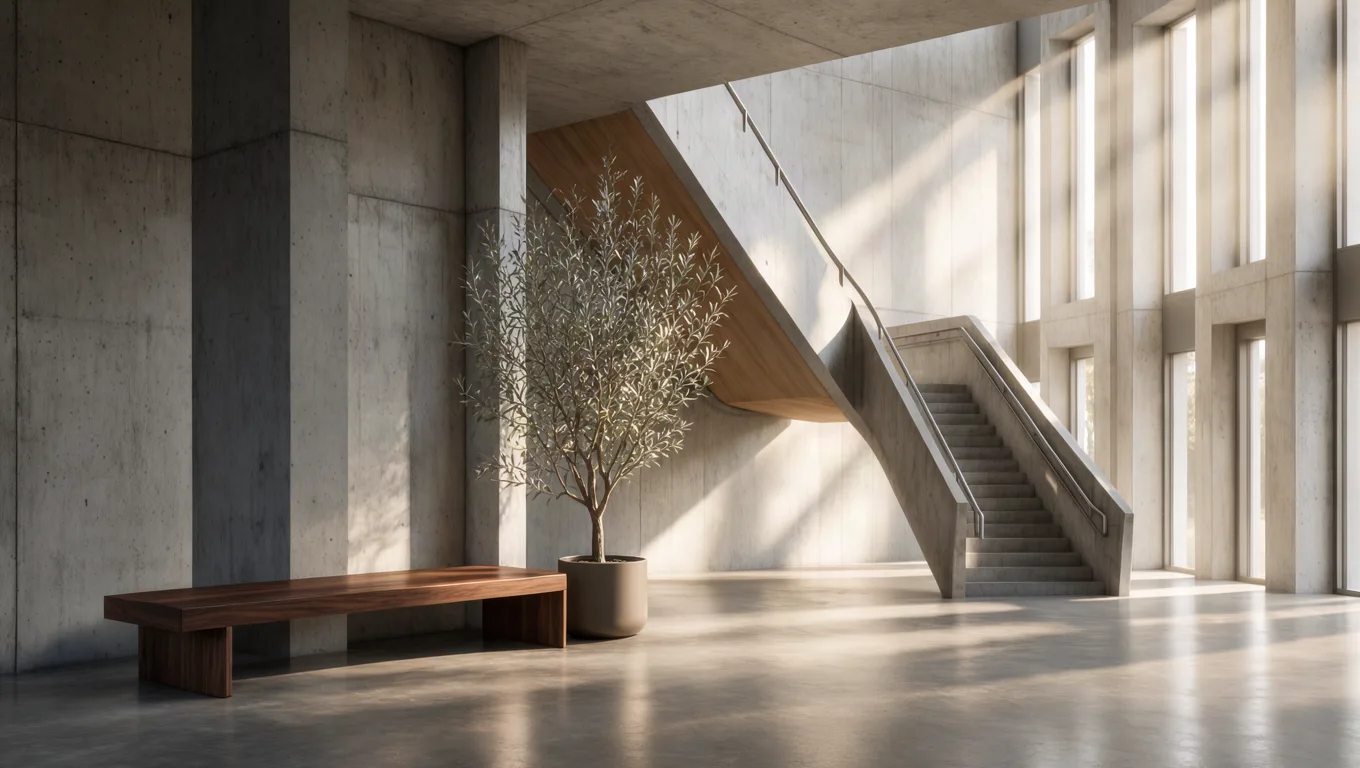
Empty concrete atrium with a staircase
Source
Krea 3 edit adding furniture to an empty atrium with matching shadows
Result

Add furniture to an existing room

Two new objects arrived with contact shadows that match the window light. The stair and concrete held; the crop widened slightly for 16:9.

View the exact prompt

Edit <image-1>: add a long low walnut bench and a tall potted olive tree on the floor in front of the left concrete wall. Keep the staircase, concrete surfaces, window light rays, shadows, and camera angle unchanged, and give the new objects matching contact shadows.

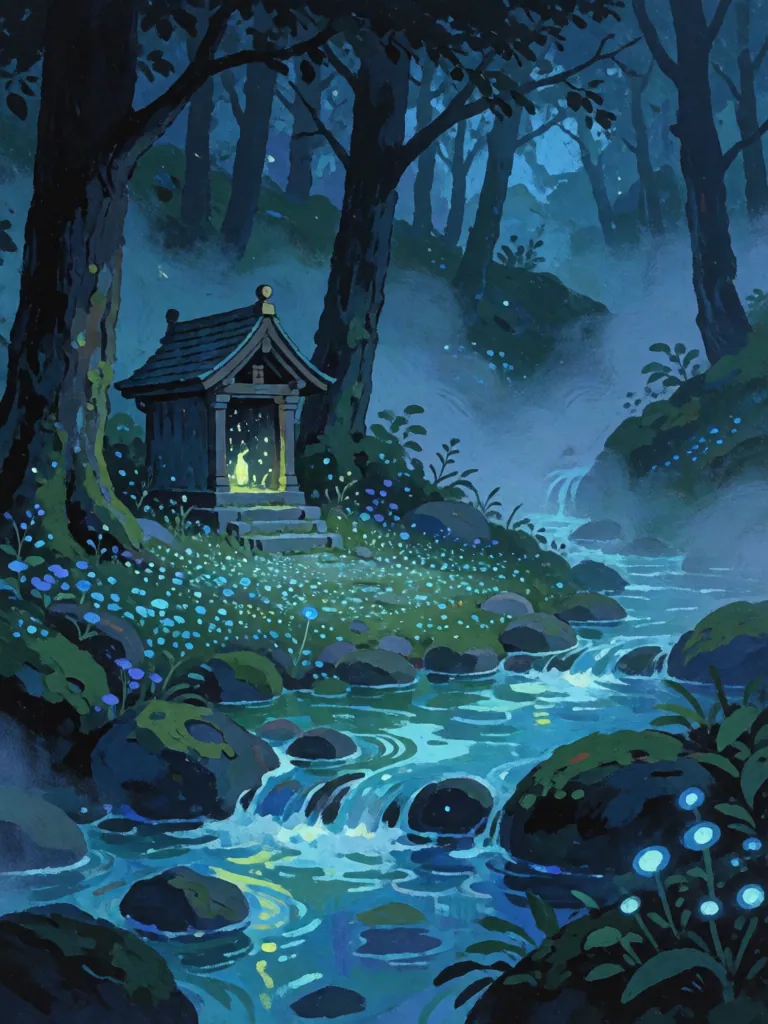
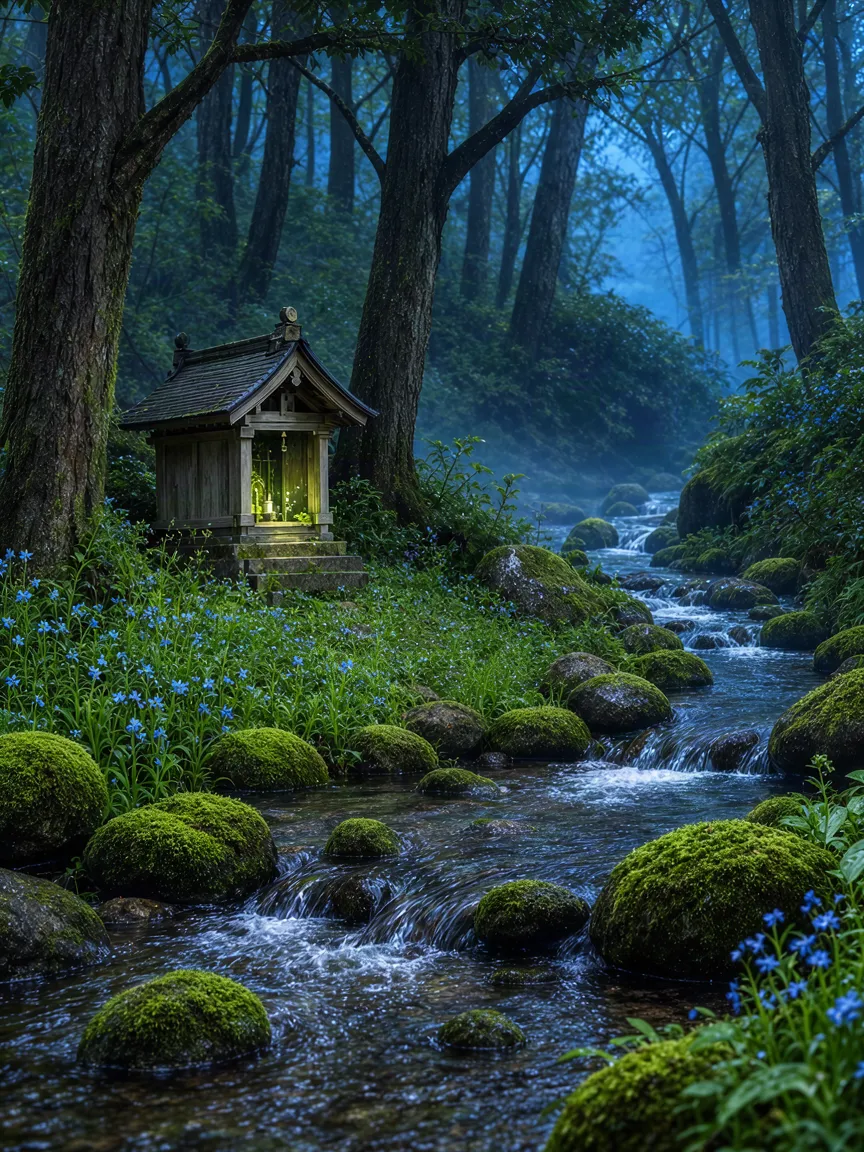
Gouache painting of a forest shrine by a stream
Source
Krea 3 image editor converting a gouache painting into a photograph
Result

Painting to photograph

A gouache painting became a photograph with the same composition, stream path, and shrine position.

View the exact prompt

Edit <image-1>: turn this gouache painting into a realistic nature photograph. Keep the composition, the stream's path, the rocks, and the small wooden shrine where they are. Replace the brushstrokes with real textures: wet moss, weathered cedar, and clear running water.

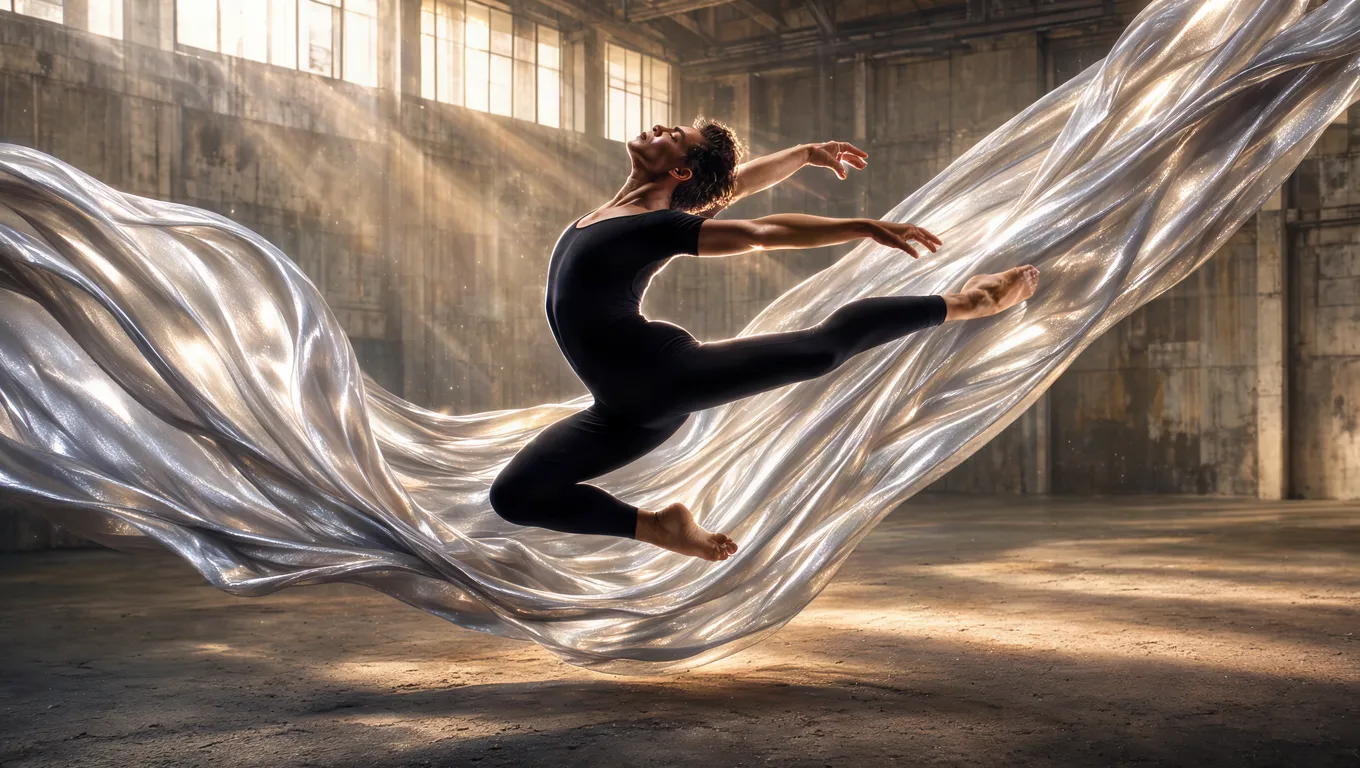
Dancer leaping with dark flowing fabric
Source
Krea 3 edit restyling a dancer’s outfit and background, same pose
Result

Restyle the outfit and set

New fabric and a new location, while the leap, silhouette, and profile stayed locked.

View the exact prompt

Edit <image-1>: change only the dancer's dark fabric into flowing metallic silver silk that catches the light, and change the background into a warehouse with warm light beams through tall windows. Keep the leaping pose, body shape, and profile unchanged.

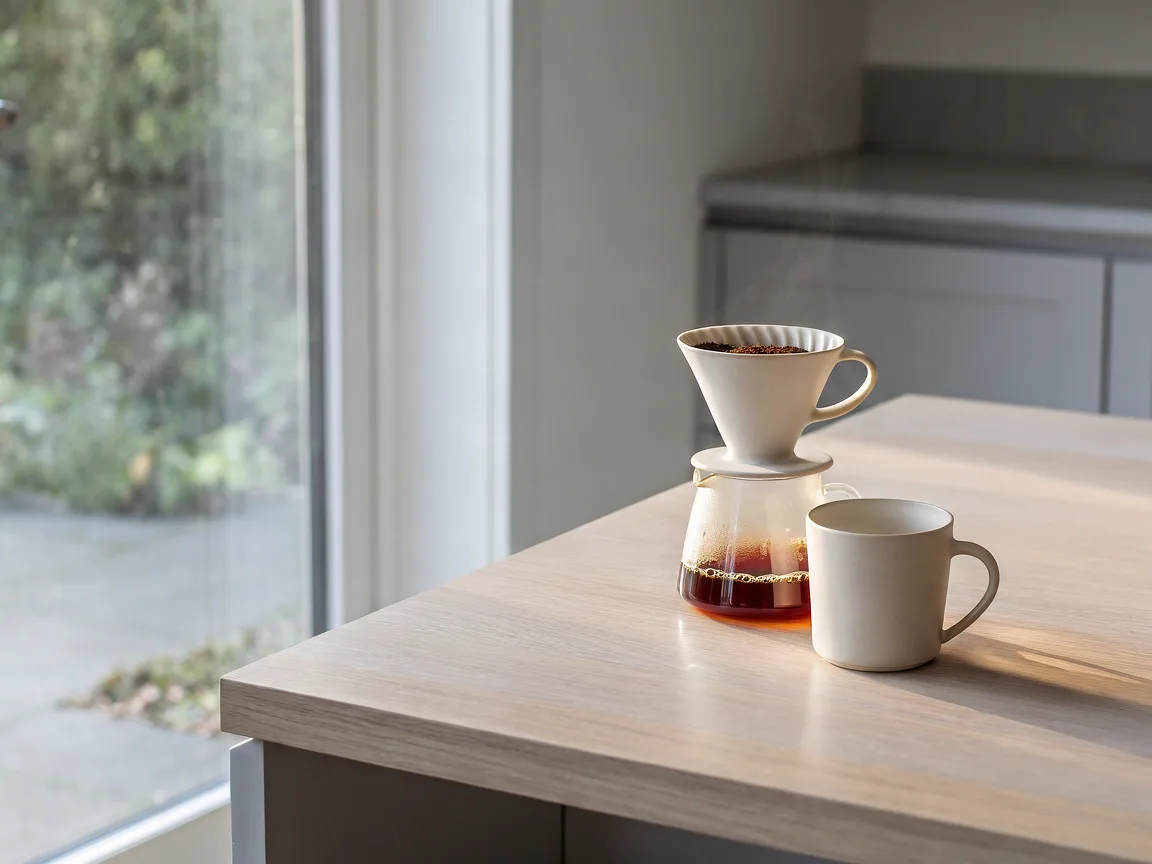
Krea 3 text-to-image result: ceramic pour-over coffee set by a window
Text-to-image mode

No source image? Krea 3 still generates

With nothing attached, the same model created this 4:3 scene from the prompt alone.

View the exact prompt

A ceramic pour-over coffee set on a pale oak counter beside a window, soft morning side light, editorial product photo, no text

Multi-turn Krea 3 edits: one character, three changes

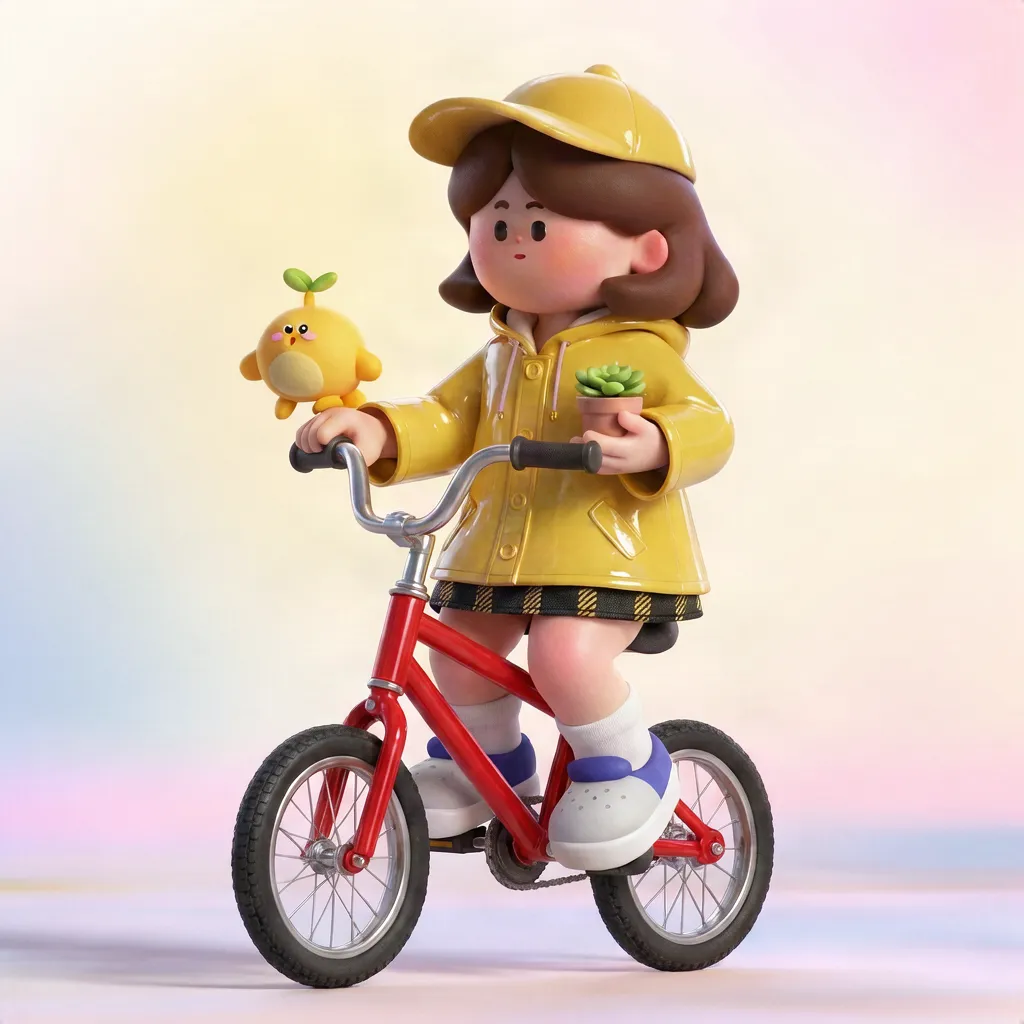
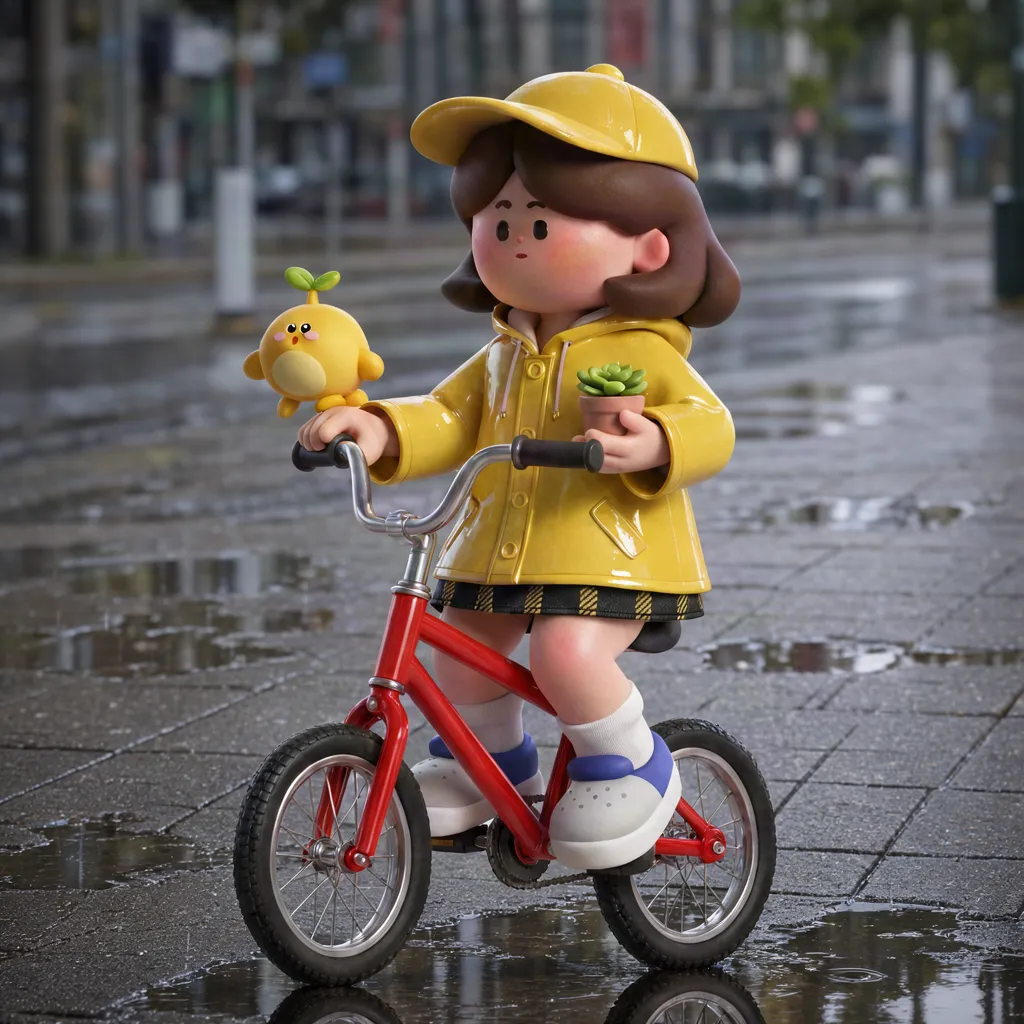
Each step below fed the previous result back into Krea 3 with one new instruction. The face, cap, and proportions carried through all three edits, which is what makes Krea 3 useful for series work.

  1. 3D toy character on a kick scooter, original image
    Source

    The original character

  2. Krea 3 edit 1: the character now wears a yellow raincoat
    Edit 1

    Hoodie changed to a raincoat

  3. Krea 3 edit 2: the same character riding a red bicycle
    Edit 2

    Scooter replaced with a bicycle

  4. Krea 3 edit 3: the same character on a rainy city sidewalk
    Edit 3

    Background moved to a rainy street

View the exact prompt
  1. Edit 1: Edit <image-1>: change only her purple hoodie to a glossy yellow raincoat. Keep her face, hair, cap, plaid skirt, scooter, and the pastel background unchanged.
  2. Edit 2: Edit <image-1>: replace the kick scooter with a small red bicycle that she is riding. Keep her face, hair, cap, yellow raincoat, skirt, and the background unchanged.
  3. Edit 3: Edit <image-1>: change only the background to a rainy city sidewalk with puddles and soft grey daylight. Keep the character, her yellow raincoat, cap, skirt, and the red bicycle unchanged.

What you can edit with the Krea 3 image editor

Krea 3 works best when one thing changes and everything else is a constraint. These are the edits it handles well.

Packshots to ad posters

Move a product onto a new set or into a campaign layout while its shape, label, and proportions stay fixed.

Label and text edits

Replace the words on a label, sign, or poster. Put the exact copy in quotes and proofread every letter.

Recolors and colorways

Change one material’s color and keep its pattern and stitching, then branch into a set of colorways.

Object removal and insertion

Remove a distraction, add furniture, or swap one object for another, with shadows that match the scene.

Sketch and storyboard to photo

Let a sketch or storyboard panel fix the layout and the prompt decide materials, light, and finish.

Multi-reference characters

Combine a character, an outfit, and a location from separate images into one consistent frame.

Multi-turn series

Edit the same image again and again — new outfit, new prop, new place — while the identity holds.

How to use Krea 3 online in four steps

Treat every Krea 3 edit as one decision: what changes, and what must survive it.

  1. Add the image you want to change

    Upload the source first so it becomes <image-1>. Add up to four more images for an object, a material, or a character.

  2. Write the change and the constraints

    Say exactly what should change, then list what must stay: product shape, face, text, camera angle.

  3. Pick the crop and check the cost

    Choose an aspect ratio. Krea 3 edits run at 1K; text-to-image runs at 1K or 2K. The cost shows before you start.

  4. Review, then fix one thing

    Check edges, lettering, and shadows first. If one detail is off, describe only that detail in the next Krea 3 edit.

Krea 3 prompt guide: what to change, what to keep

Krea’s own advice is to name what stays fixed, use “only” for single changes, and give every reference image a job. A good Krea 3 prompt looks like this.

Name what stays fixed

Anything you do not protect is open to change. List the parts that must survive the edit.

Keep the bottle shape, the hands, and the background unchanged.

Use “only” for a single change

A narrow verb and the word “only” stop the model from redesigning the whole frame.

Change only the dress color to deep emerald green silk.

Give every image a role

With several inputs, refer to each by its upload order and say what it contributes.

Use <image-1> as the room and place the chair from <image-2> by the window.

Quote the exact text

Put new lettering in quotes, keep it short, and proofread the output.

Replace the label text with “HARBOR & PINE”.

Ask for physical consistency

Added objects look pasted on without shadows, scale, and perspective that match the scene.

Give the new bench a soft contact shadow that matches the window light.

Write in your own language

Krea 3 prompts do not have to be in English: the autumn fox example above was edited with a Japanese prompt.

<image-1> を編集:雪景色を秋の森に変えてください。

Krea 3 vs Krea 2: editing vs generating

Both run on this site with the same credits. Krea 3 changes an image you already have; Krea 2 creates a new one with its signature aesthetic.

CompareKrea 3Krea 2
Built forEditing an existing imageAesthetic text-to-image from a prompt
Image inputsSource plus references (up to 5), named <image-1>…Optional style references (up to 5) for palette, light, and texture
Output1K or 2K; edits at 1K1K presets
Cost10 per 1K image, 40 at 2K, +10 per input image5 / 10 / 15 for Medium Turbo / Medium / Large
Choose it whenThe composition exists and one part must changeYou are exploring a new look from scratch
Compare the Krea 2 tiers

Krea 3 vs Nano Banana and GPT Image: benchmarks

Artificial Analysis ranks image editors by blind human votes. Here is where Krea 3 sits next to Nano Banana and GPT Image on its image editing leaderboard.

ModelElo
GPT Image 2.5 Sunburst (max)1199
Krea 3 (Ultra)1151
Nano Banana 2.11151
GPT Image 2 (high)1137
Krea 3 (Fast)1125
Nano Banana 21124

Artificial Analysis image editing leaderboard, checked November 4, 2026; rankings move as votes arrive. Krea 3 Ultra is a mode in Krea’s own app; this site runs the standard Krea 3 model. Artificial Analysis

How much of the photo changes over many edits

In an independent test posted on X on October 16, 2026, ten edits in a row changed 30.7% of the photo with Krea 3 versus 74.2% with Nano Banana Pro. Our multi-turn example above shows the same tendency on a smaller scale.

X · @thehypedotnews

Krea 3 pricing: cost per edit

Krea 3 is billed by pixels, and an edit also counts every input image at the output size. That is why each extra reference image adds 10 at 1K.

RunCredits
Text-to-image, 1KOne output image, nothing attached10
Text-to-image, 2KFour times the pixels of 1K40
Edit, 1K, one source imageThe result plus the image you edit20
Each additional input imageCounted at the output size+10
Edit with five imagesThe maximum per edit60

Credits are reserved when an edit starts and refunded automatically if it fails. Packs are one-time purchases and never expire.

See credit packs

Krea 3 limitations to know before you edit

Knowing the edges of the Krea 3 image editor saves time. Check these before you build a workflow around it.

Untouched areas can drift

Areas you did not mention usually hold, but fine texture, small text, and edges can still shift. Compare at full size.

Lettering needs proofreading

Krea 3 handles short label text well, yet a single wrong letter can slip through. Check every word before print.

Framing follows the output ratio

If the crop you pick differs from the source, the scene is re-framed to fit. Match the source ratio when layout matters.

2K editing is not offered yet

Every input image is billed at the output size, so edits run at 1K to keep costs predictable. 2K is for text-to-image.

Some requests are filtered

Prompts or images flagged by the safety system are rejected, and the charge for that run is refunded.

Krea 3 image editor FAQ

What is Krea 3?

Krea 3 is Krea’s image editing model, released on October 15, 2026. You give it an existing image and describe a change; it edits that part and keeps products, characters, and text intact. It can also take reference images for objects, materials, or characters.

Is this the official Krea website?

No. Krea 3 is developed by Krea (krea.ai). This site, Krea 2, runs the standard Krea 3 model through the WaveSpeed API alongside Krea 2, with its own accounts and credits.

How does Krea 3 compare to Nano Banana?

On the Artificial Analysis image editing leaderboard (checked November 4, 2026), Krea 3 Ultra scores 1151 Elo, level with Nano Banana 2.1, and Krea 3 Fast scores 1125 against 1124 for Nano Banana 2. An independent ten-edit test also found Krea 3 changed far less of the original photo than Nano Banana Pro.

How much does a Krea 3 edit cost here?

Text-to-image costs 10 credits at 1K and 40 at 2K. An edit costs 10 credits for the result plus 10 for each input image, so editing one photo is 20 credits and using five images is 60.

Can I use Krea 3 online for free?

New accounts receive 10 free credits, which cover one 1K Krea 3 text-to-image run. Edits start at 20 credits, so they need a credit pack.

How do multi-reference edits work in Krea 3?

Upload up to five images. The first is <image-1>, the second <image-2>, and so on, so your Krea 3 prompt can take a character from one image and place it in the room from another.

Can I write Krea 3 prompts in other languages?

Yes. The autumn fox example on this page was edited with a Japanese prompt and followed it. Keep the same structure in any language: the change first, then what must stay.

Why does a Krea 3 edit take 20–30 seconds here?

Krea’s “under 8 seconds” figure is measured on its own infrastructure. This site runs Krea 3 through the WaveSpeed API, where our 1K edits took 20–30 seconds and a 2K image about a minute.

Does Krea 3 support 2K?

Yes for text-to-image. Edits run at 1K for now, because every input image is billed at the output size and a 2K edit would cost four times as much.

Should I use Krea 3 or Krea 2?

Use Krea 3 when you already have the image and need one part changed. Use Krea 2 when you are generating a new image and want its aesthetic, or want cheaper drafts with Medium Turbo.

Start your first Krea 3 edit online

Use Krea 3 online: upload the image you have, describe the one change you need, and keep everything else.